
CYPEX Documentation
Support
v2.0.0 Latest stable release View changelog ->

Configuration

Configuration lives under Platform Admin and holds instance-level settings — these apply to the whole CYPEX deployment, not to a single organization:

Configuration

Session length and Connector internal/local targets are the two instance-wide settings exposed here.
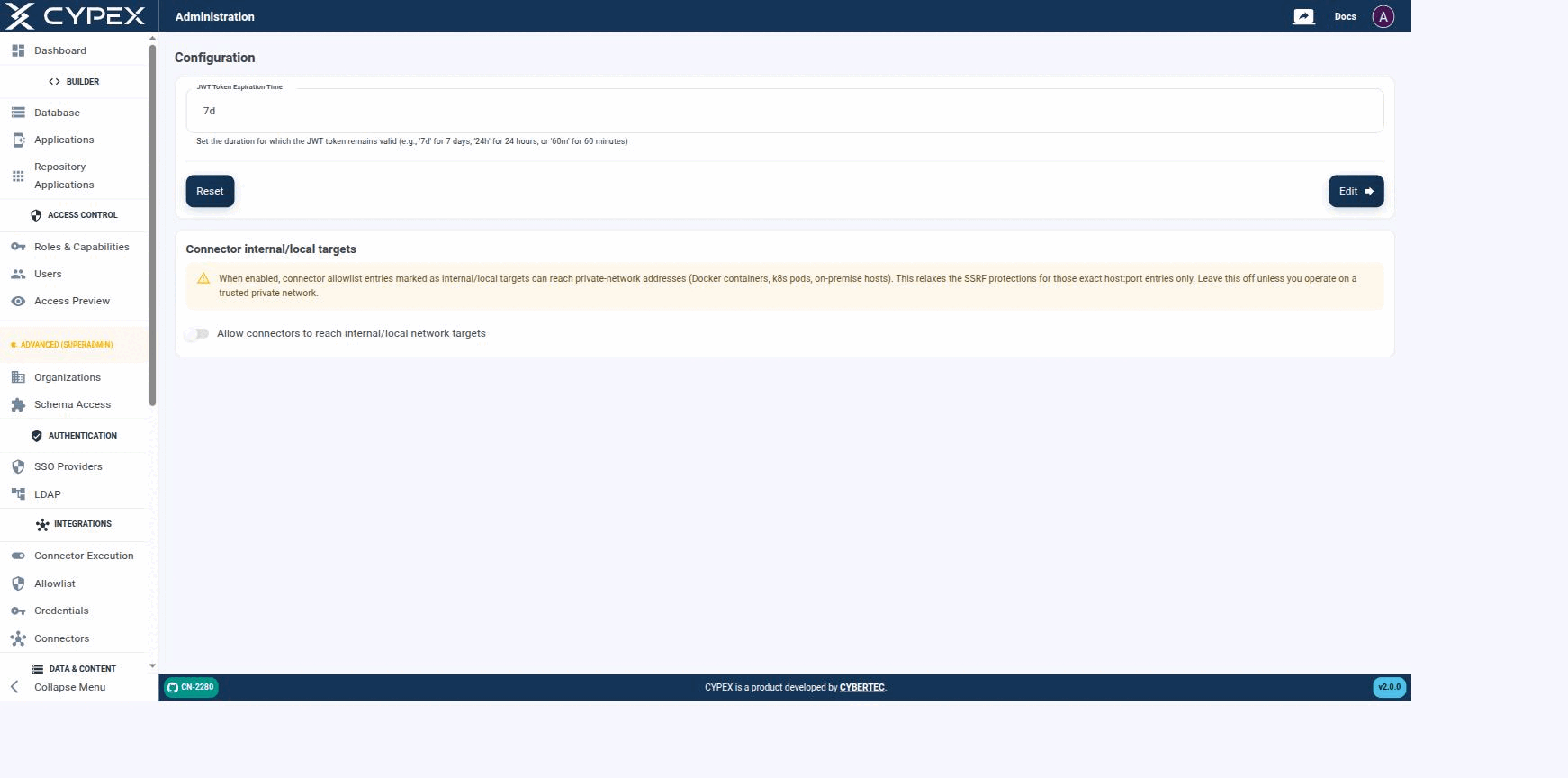
Session length and Connector internal/local targets are the two instance-wide settings exposed here.

Session length

Sets how long a session stays valid before the user must sign in again, using a duration string — 7d for 7 days, 24h for 24 hours, or 60m for 60 minutes. Click Edit to apply the value shown in the field, or Reset to restore the previous value. It writes cypex.t_config.jwt_exp.
Read full post

Database Migrations (runner)

Platform Admin → Database Migrations is the in-app runner for CYPEX’s own framework schema migrations — the changes CYPEX applies to its internal cypex schema when the platform is upgraded.

This screen is System Administrator only (system admin visibility).

Info
This is not where you migrate your data model. Changes to your own tables are made in Database.

Relationship to the upgrade guides

The in-app runner applies migrations. It does not tell you whether it is safe to apply them, what they change, or how to verify the result — that is what the upgrade documentation is for. For v2.0.0 specifically, run the upgrade from Upgrade to v2.0.0 and treat this screen as one step inside that procedure, not a substitute for it.

Read full post

Storage Repositories

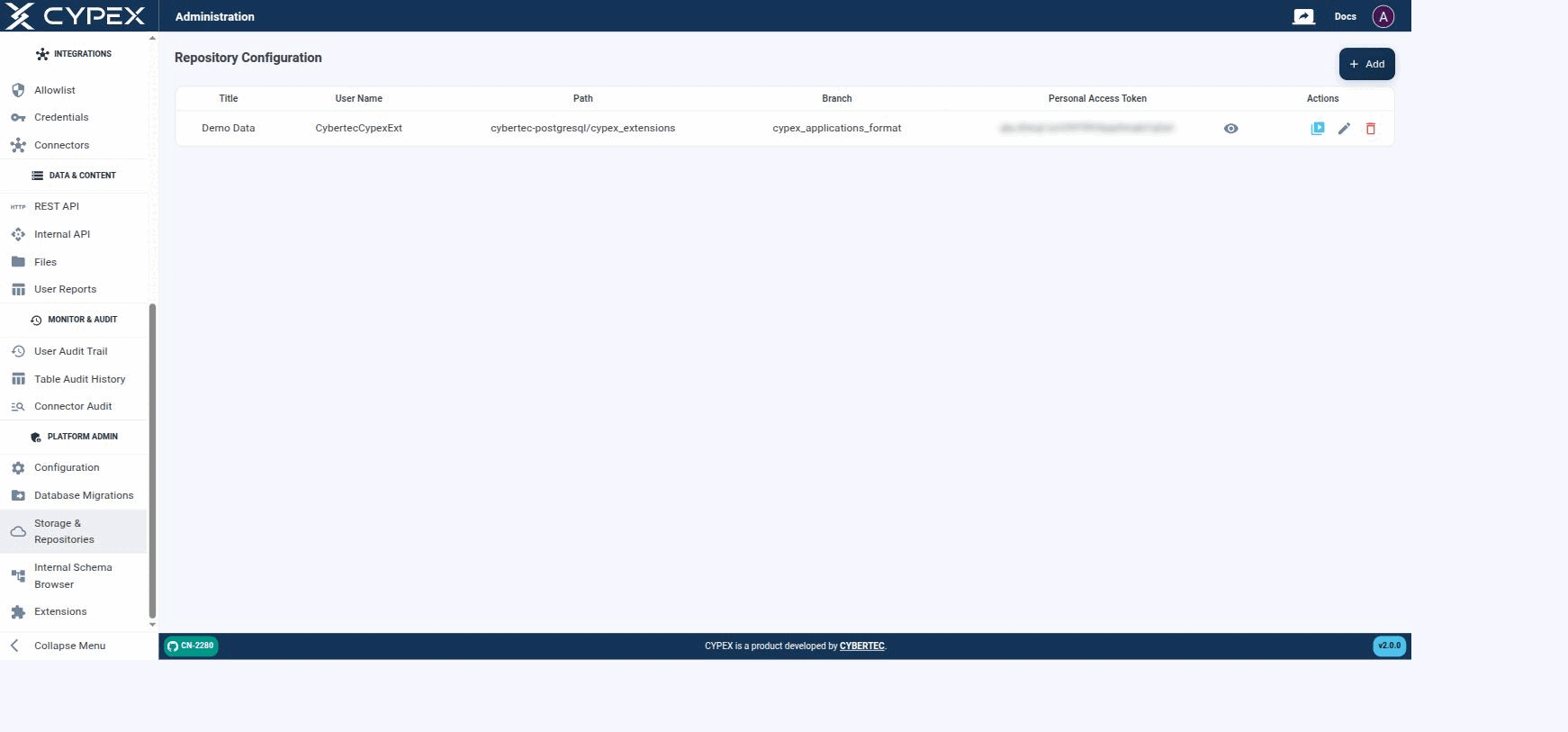
Under Platform Admin → Storage & Repositories, you define the Git repositories CYPEX uses to fetch extensions. Basically, you give CYPEX access to a Git repository which contains all of the extensions in a format accessible to CYPEX:

Repository Configuration

Configured repositories list their Title, User Name, Path, Branch, and a masked Personal Access Token. Actions let you test the connection, edit, or delete a repository.

Configured repositories list their Title, User Name, Path, Branch, and a masked Personal Access Token. Actions let you test the connection, edit, or delete a repository.

The configuration is straightforward — add the Git data and test the connection. CYPEX is then fully connected and you can easily add extensions to the system as needed. Click + Add to open the form:

Read full post

Internal Schema Browser

Platform Admin → Internal Schema Browser shows the internal cypex schema — the platform’s own metadata tables, not your application data.

This screen is System Administrator only (system admin visibility) and is intended for advanced debugging.

What it shows, and what it does not

Internal Schema BrowserDatabase
Schemacypex — platform metadataYour application schemas
ContentsThe tables CYPEX uses to store applications, modules, organizations, roles, and object definitionsThe tables, views, and workflows you design
PurposeInspecting platform state while debuggingBuilding the data model your applications render
Warning
The cypex schema is CYPEX’s own storage. Its layout is an implementation detail and changes between releases. Read it to diagnose a problem; do not build applications or integrations against it. Use Database for your own model and the REST API for programmatic access to your data.

See also

  • Database — the ER editor for your own schemas.
  • Audit — the audit history surfaced as a supported screen.
  • Administration Panel — sidebar reference and visibility levels.