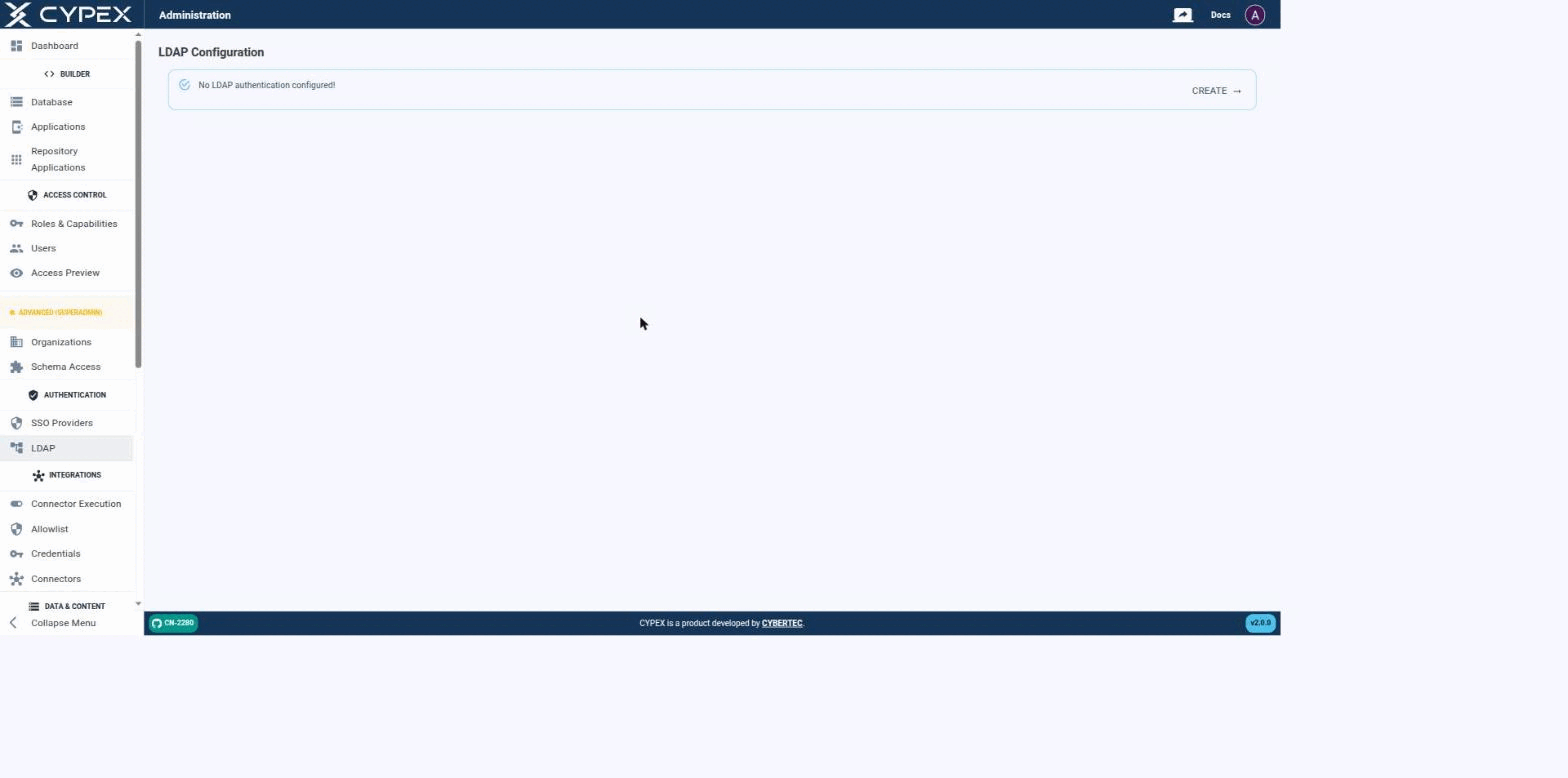
CYPEX authenticates users against an LDAP directory as an alternative to local (integrated) accounts — the same mechanism that backs Microsoft Active Directory, OpenLDAP, and any other LDAP v3 server. Before a connection is configured, the page simply confirms that no LDAP authentication is set up yet:
No LDAP authentication configured
Click CREATE to start the connection form.
Connecting to your directory
Fill out the connection settings to establish a connection between CYPEX and your directory:
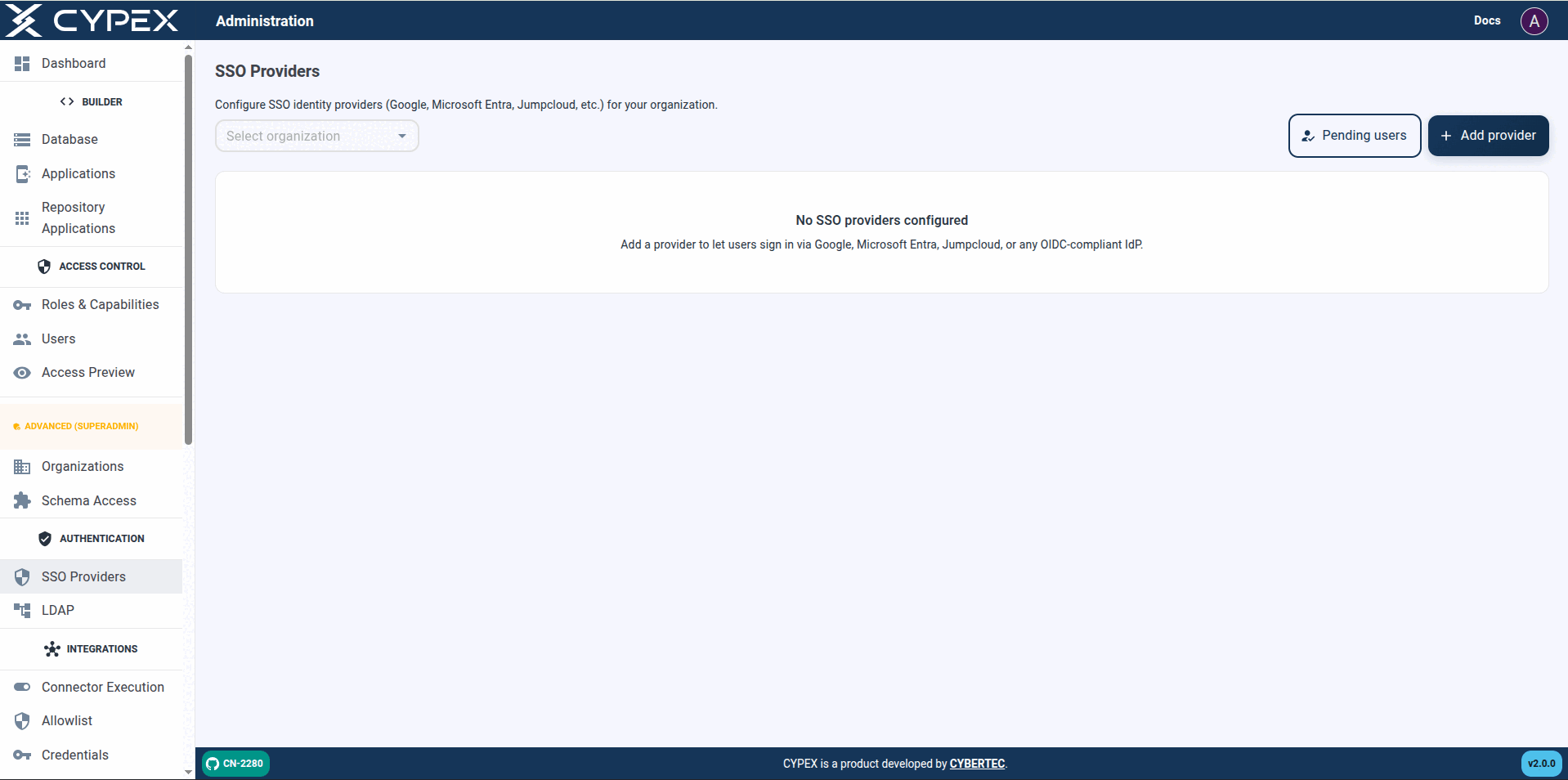
Under Authentication → SSO Providers, this page configures which identity providers can sign users into an organization. For the full hands-on walkthrough — adding a provider, signing in, and approving the first user — see the OIDC setup guide.
SSO Providers
Select an organization, then Add provider. Pending users opens the same approval queue as Users → Pending SSO.
List screen
Filter by Organization — defaults to All organizations. With no
organization selected in contexts that require one: Select an
organization / Pick an organization above to list its SSO provider
configurations.
Pending users — opens the approval queue (same as Users → Pending
SSO).
Add provider — disabled until an organization is selected in the filter
when the create flow requires one (Select an organization in the filter
above before adding a provider.).
Empty list — No SSO providers configured / Add a provider to let
users sign in via Google, Microsoft Entra, Jumpcloud, or any OIDC-compliant
IdP.
Table columns — Name, Organization, Type, Client ID, Status, Last used,
Actions. Status is Active or Disabled; Last used shows Never
until the first successful sign-in.
This page has moved. See SSO → LDAP for directory connection settings, the three role-mapping modes, Active Directory notes, and how LDAP coexists with local auth and OIDC SSO.
The CYPEX PDF Reporting Feature enables users to generate high-quality PDF reports directly from CYPEX applications. Users can choose between interactive reports, which mirror the live application view, and static reports, which use LaTeX for structured and large-scale data presentation. Reports can be saved locally or stored in the database for easy access through the Admin Panel.
How to Create a New Report
To generate a PDF report, create a new report page in CYPEX as follows:
Export/Import packages CYPEX applications into portable ZIP archives for migration, backup, and deployment across instances. A package is the practical promote path: export from one environment, import into another, and get a working deployment that includes UI definitions, queries, workflows, functions, files, reports, users, roles, and optional audit logs — in structured JSON.
For governance and compliance reviews, pair packaging with the audit surfaces below: row history lives in cypex.t_history (History Tracking), table/login audit in the admin Audit section, and permission decisions in Governance evidence (cypex_log.t_permission_audit_log).
CYPEX allows multiple developers to work on different applications for the same user Role to avoid conflicts in collaborative development. Since each application is tied to a specific role with access to particular database queries, developers can build separate applications independently.
The Merge Applications feature enables developers/administrators to combine multiple applications built for the same Role into a single, unified application. This process merges all app definitions and concatenates pages, reports, and menu items, ensuring that the final merged application includes all elements from the individual applications.
CYBERTEC provides a set of extensions which can be used to simplify the process of building applications. In this section you’ll learn which extensions exist and what they are capable of doing.
Extension: telegram_posts
Purpose:
Store telegram posts
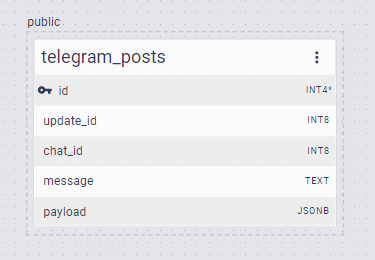
ER model:
Description:
The extension consists of just one table. The content of the message is stored in the “payload” column.