This page is the admin-panel entry point for the Organizations screen. The full
conceptual and procedural documentation lives in
Organizations. This page covers the GUI
surface and what an operator can change there.
In CYPEX, an Organization is the unit of multi-tenancy. It is the data
boundary that decides which rows a user can see, insert, update, or delete.
Organizations are not an authorization system on their own — they add a
per-request data scope on top of the existing PostgreSQL role-based
capability model. Both dimensions must agree before a row is returned. See
Capabilities vs data scope.
Schema Access decides which PostgreSQL schemas an organization may use. It
is the coarsest of the three access controls in v2.0.0 and it sits above the
other two: an organization that has not been granted a schema sees nothing in
it, regardless of role capabilities and regardless of what the RLS policy would
have allowed.
Sidebar location: Access Control → Advanced (System admin) → Schema Access.
This page is System Administrator only (system admin visibility). An
Organization Administrator cannot grant their own organization a schema — by
design, since doing so would let a tenant widen its own boundary.
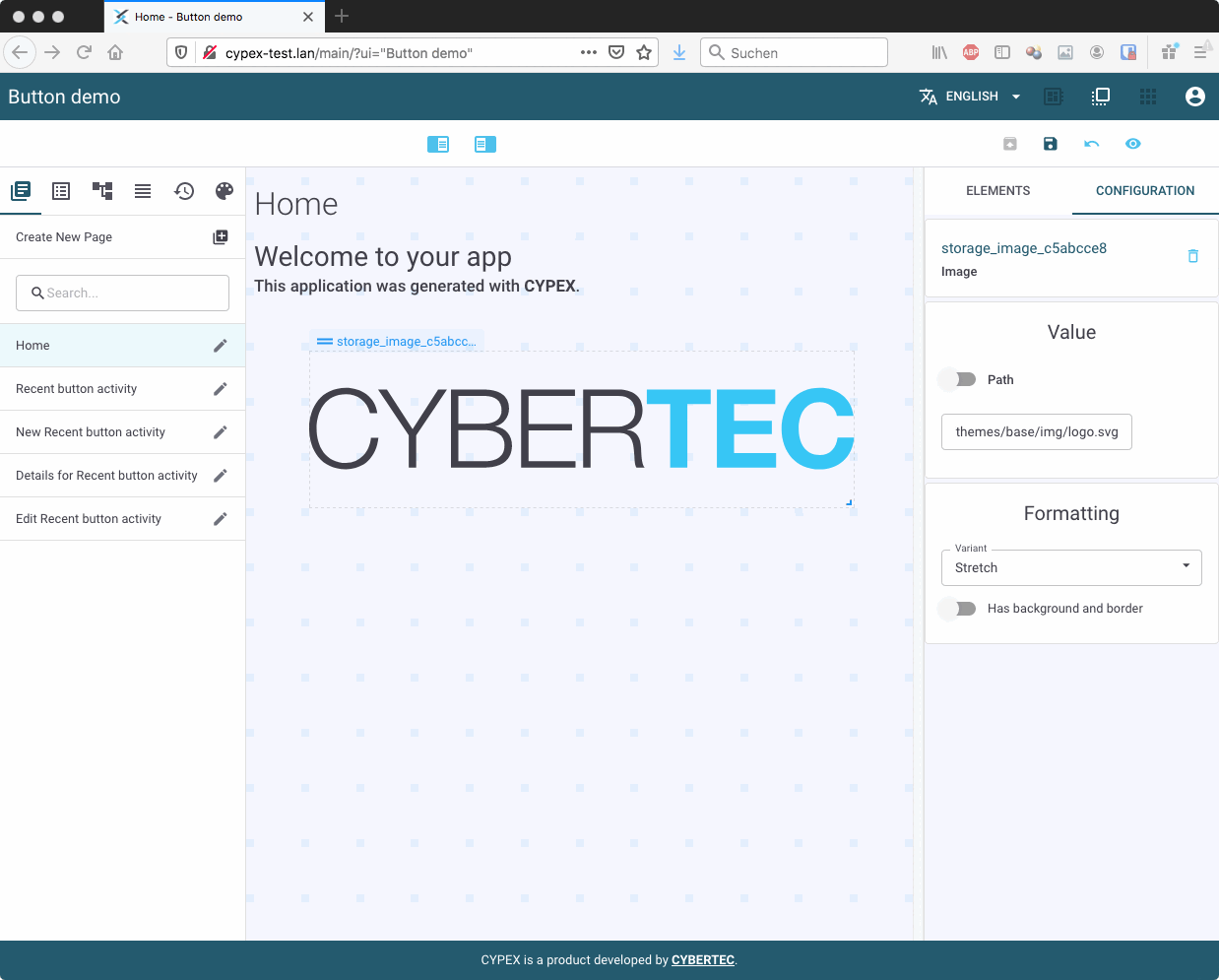
CYPEX supports the integration of external images. Add an image element to your desired page and click on the element for configuration: You may add the desired link to the image, resize the element and define whether the picture can be resized or stretched.
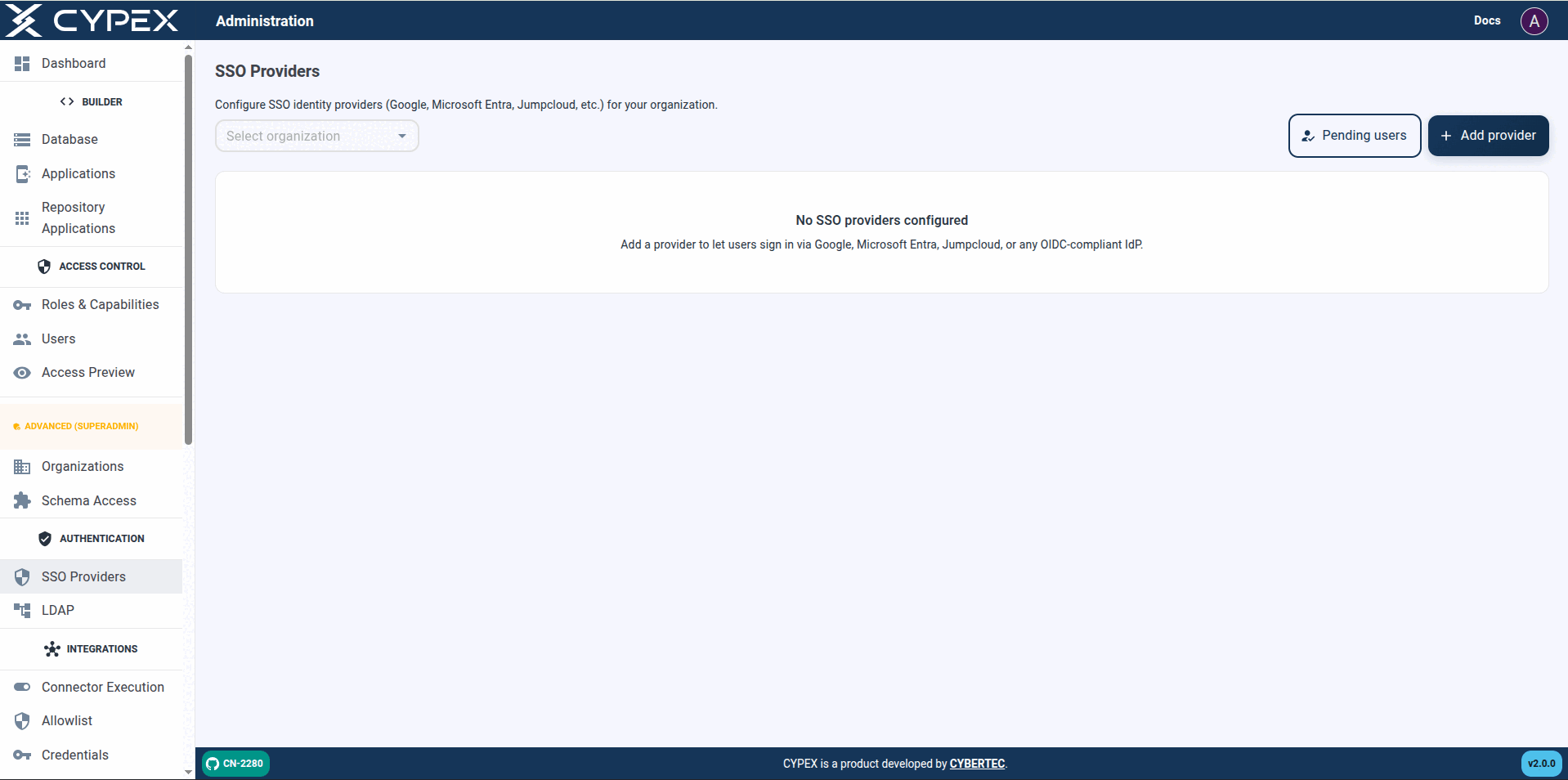
Under Authentication → SSO Providers, this page configures which identity providers can sign users into an organization. For the full hands-on walkthrough — adding a provider, signing in, and approving the first user — see the OIDC setup guide.
SSO Providers
Select an organization, then Add provider. Pending users opens the same approval queue as Users → Pending SSO.
List screen
Filter by Organization — defaults to All organizations. With no
organization selected in contexts that require one: Select an
organization / Pick an organization above to list its SSO provider
configurations.
Pending users — opens the approval queue (same as Users → Pending
SSO).
Add provider — disabled until an organization is selected in the filter
when the create flow requires one (Select an organization in the filter
above before adding a provider.).
Empty list — No SSO providers configured / Add a provider to let
users sign in via Google, Microsoft Entra, Jumpcloud, or any OIDC-compliant
IdP.
Table columns — Name, Organization, Type, Client ID, Status, Last used,
Actions. Status is Active or Disabled; Last used shows Never
until the first successful sign-in.
This page has moved. See SSO → LDAP for directory connection settings, the three role-mapping modes, Active Directory notes, and how LDAP coexists with local auth and OIDC SSO.
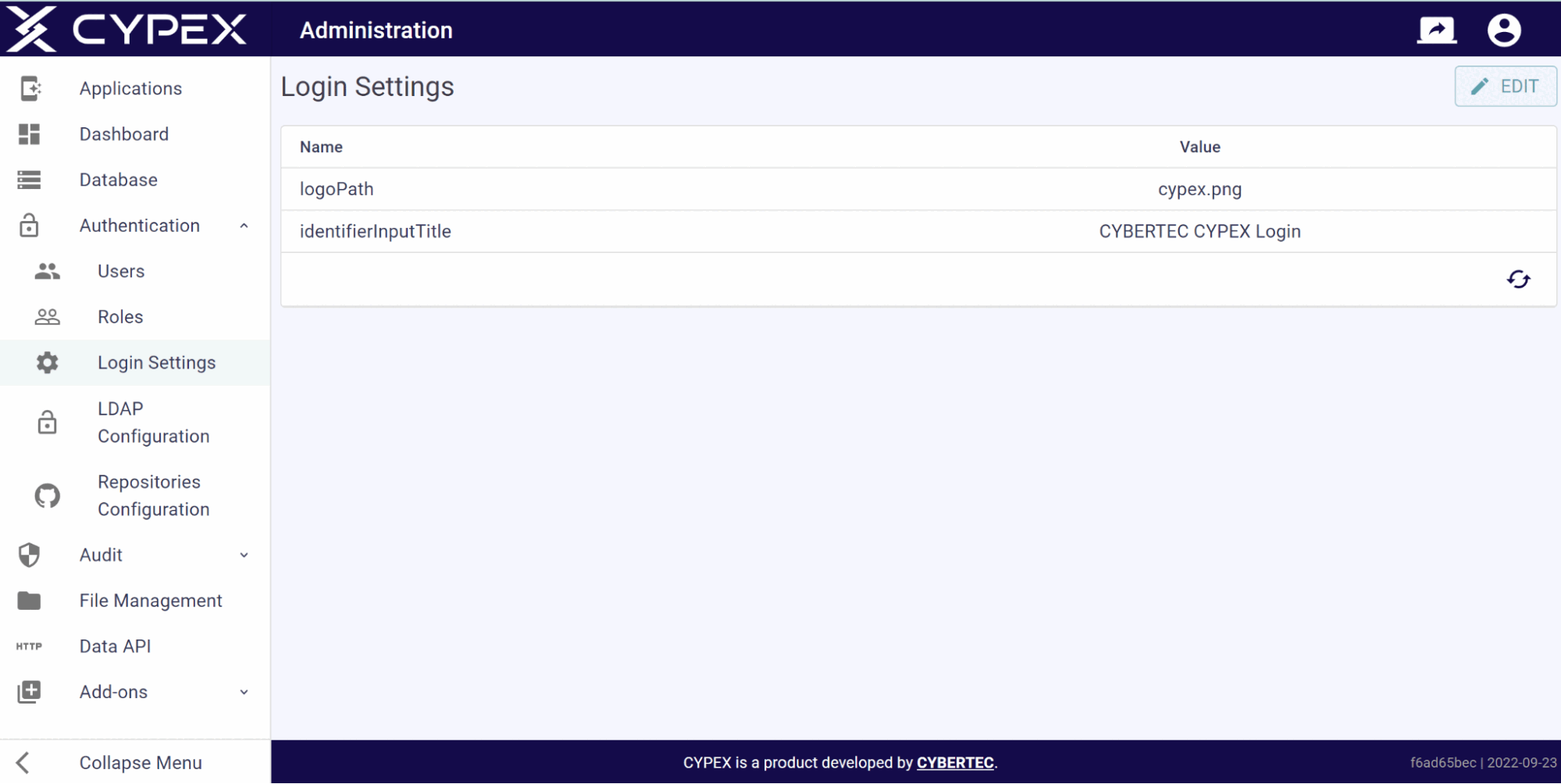
In Login Settings you define the logo shown during login:
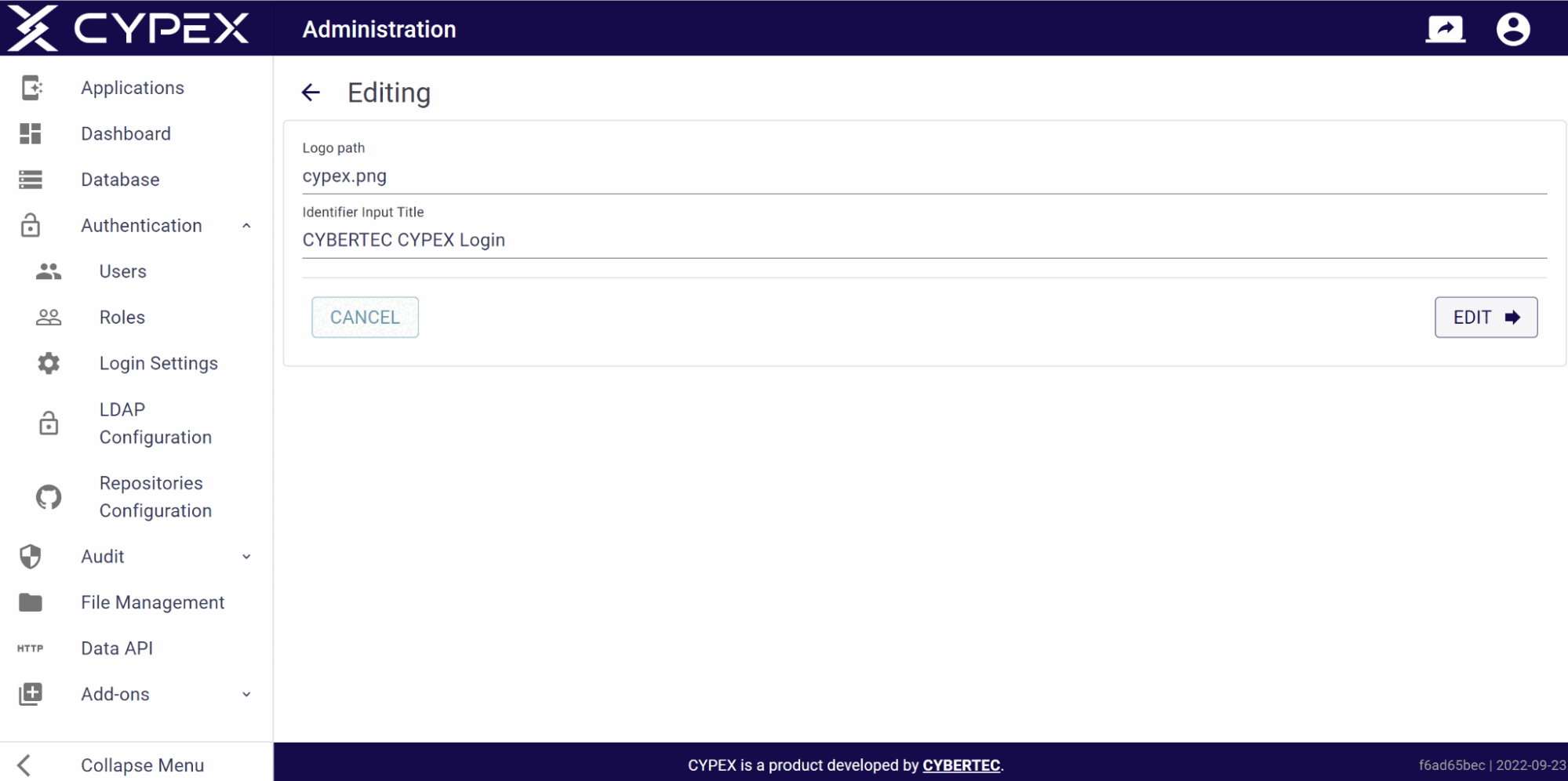
You can upload any suitable logo and easily change the name of the page to adjust CYPEX to your company CI’s needs. Note that the logo you are pointing to has to be in the public folder of your webserver:
These settings directly translate to the way the start page looks. The following screenshot shows what the default layout is like in the standard configuration shipped to customers:
Under Integrations → Connector Execution, the page heading is Connector
Execution Rollout. It is a two-step kill switch for connector execution.
Everything is off by default — connectors only run in an organization when
platform-wide execution is on and that organization is included in the
rollout:
Info
Enterprise licence required. Integrations is gated on an active enterprise licence. Without one the section does not appear in the admin sidebar, regardless of the signed-in user’s role.
Under Integrations → Allowlist, the page heading is Connector
Allowlist. It is the set of hosts outbound connectors are permitted to call.
Connectors cannot reach any host that is not allowlisted — this is enforced at
runtime, not just validated at save time:
Info
Enterprise licence required. Integrations is gated on an active enterprise licence. Without one the section does not appear in the admin sidebar, regardless of the signed-in user’s role.
Under Integrations → Credentials, the page heading is Connector
Credentials. Credentials are encrypted at rest and referenced by connectors
by name — never inline. They are write-only: the plaintext value is never
shown again after saving:
Info
Enterprise licence required. Integrations is gated on an active enterprise licence. Without one the section does not appear in the admin sidebar, regardless of the signed-in user’s role.
Under Integrations → Connectors, you build and manage governed REST connectors. A connector is authored as a draft, optionally dry-run against the live provider, then published as an immutable version — editing a published connector creates a new draft, and the live version stays unchanged until you publish again:
Info
Enterprise licence required. Integrations is gated on an active enterprise licence. Without one the section does not appear in the admin sidebar, regardless of the signed-in user’s role.