This page is the operational counterpart to the conceptual pages in the Administration panel section. It targets operators standing up a CYPEX deployment for the first time.
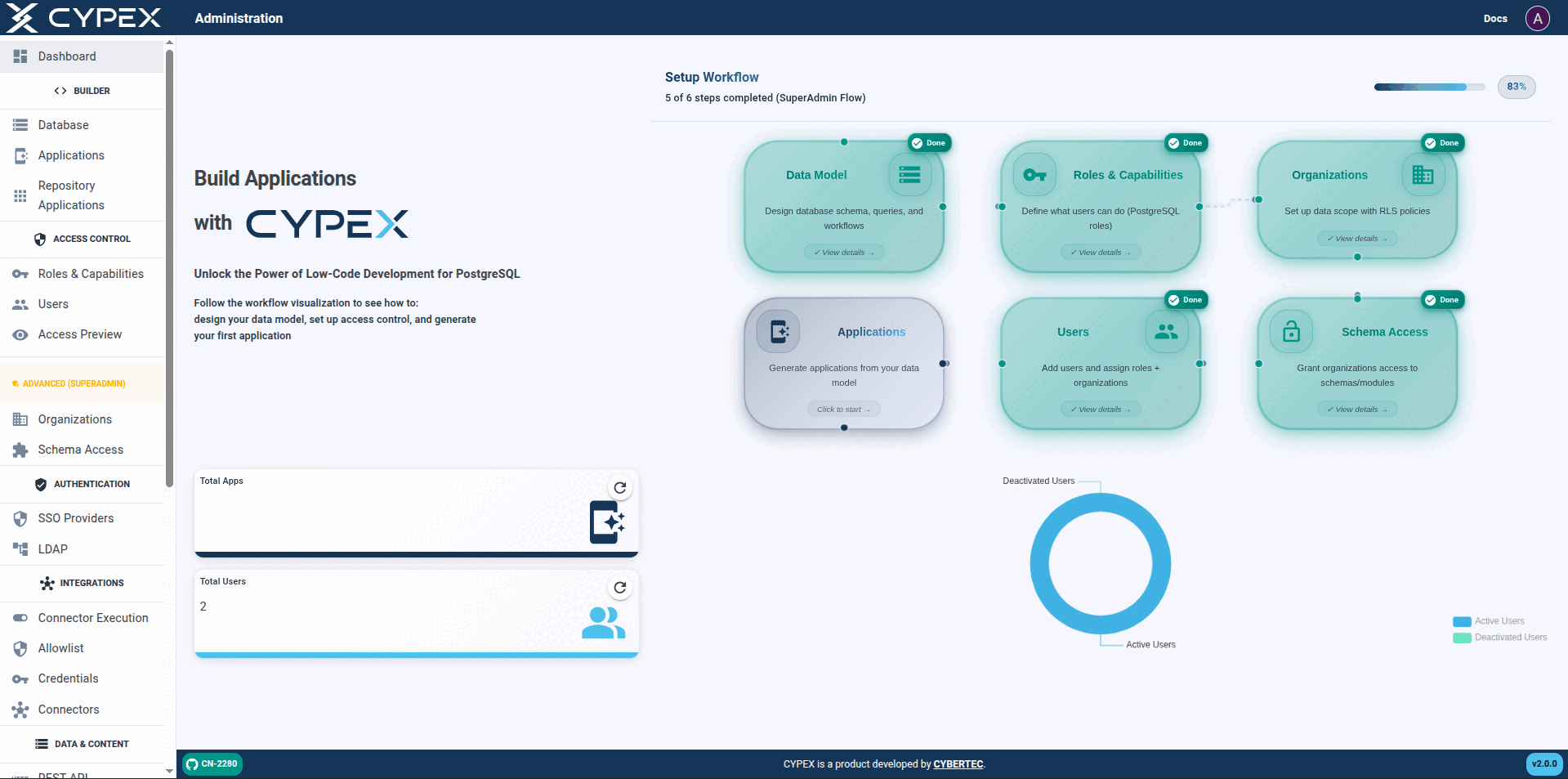
The Dashboard is the first screen you see after logging into CYPEX. It gives
you a high-level overview of what is happening inside your deployment: how
many applications and users exist, a breakdown of active versus deactivated
users, the in-product Setup Guide, and quick links in the sidebar to the
most-used admin tasks.
From the dashboard you can jump directly into any section of the admin panel
using the sidebar. The sections you see depend on your role and licence — see
the sidebar reference.
This screen is Builder → Database in the sidebar. The in-product Setup Guide refers to the same screen as Data Model, and older documentation calls it the model builder or ER editor. All four name the ER canvas documented here.
The next important feature of the admin panel is the ER editor. It allows you to check your ER model, define queries, handle workflows, and a lot more. It is the backbone to handle the data side of your database infrastructure:
The CYPEX administration panel gives operators a single place to administer and manage CYPEX as a whole. v2.0.0 reorganizes it around how operators actually set up and run a multi-tenant deployment. This section is the navigation map for that information architecture: each entry below links to a topic-scoped page documenting the corresponding admin screen.
Sidebar reference
The table below is the authoritative list of sidebar labels and who sees each one. Labels are the strings the product renders — use them verbatim in procedures.
A single CYPEX deployment can handle a large set of applications running inside the same database. Open Builder → Applications in the sidebar and CYPEX presents a list of every app currently deployed on the system.
You can easily manage your applications from this menu. This includes but isn’t limited to:
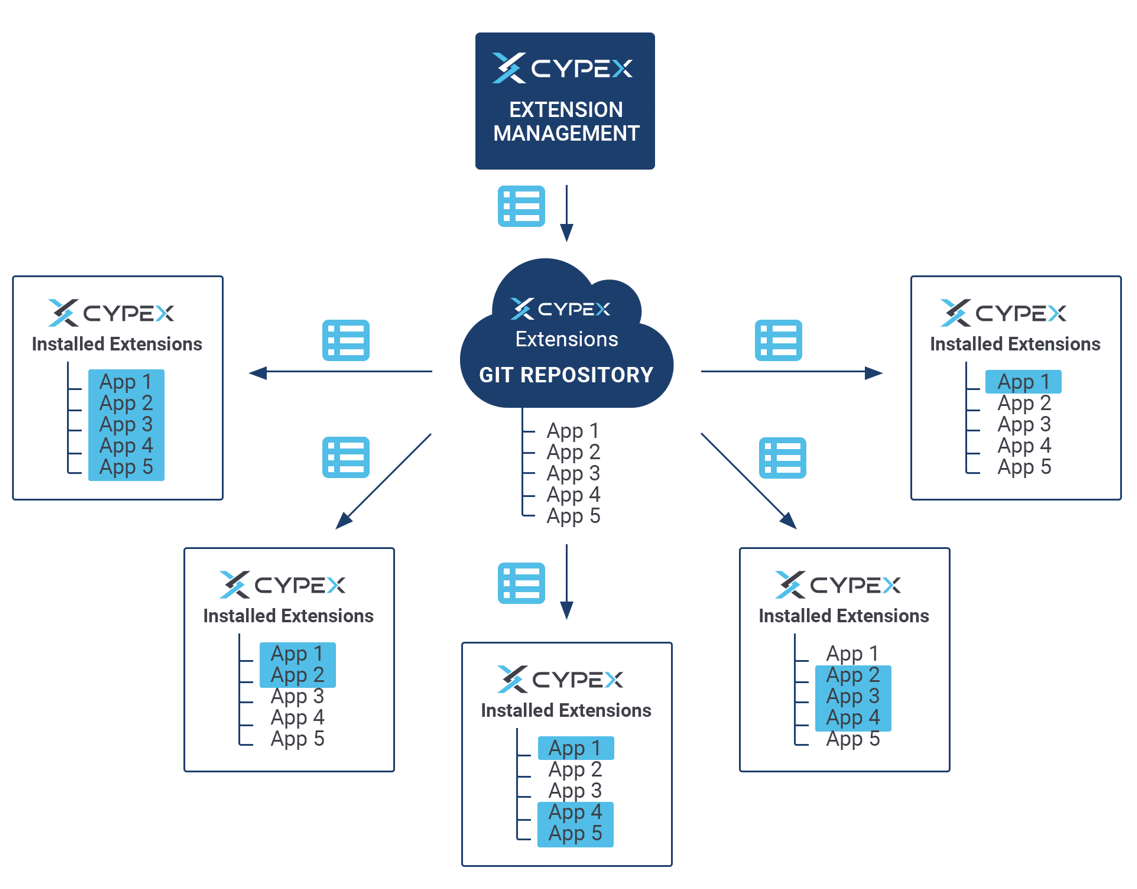
CYPEX allows users to define ready-to-use PostgreSQL extensions. Those extensions can be integrated into existing applications to simplify the model creation process and to automate as many steps as possible.
The way external extensions are supported is as follows:
CYPEX allows users to define a set of Git repositories which can be used to fetch extensions. It allows you to deploy everything from small SQL fragments and simple procedures all the way up to full-fledged complex data models.
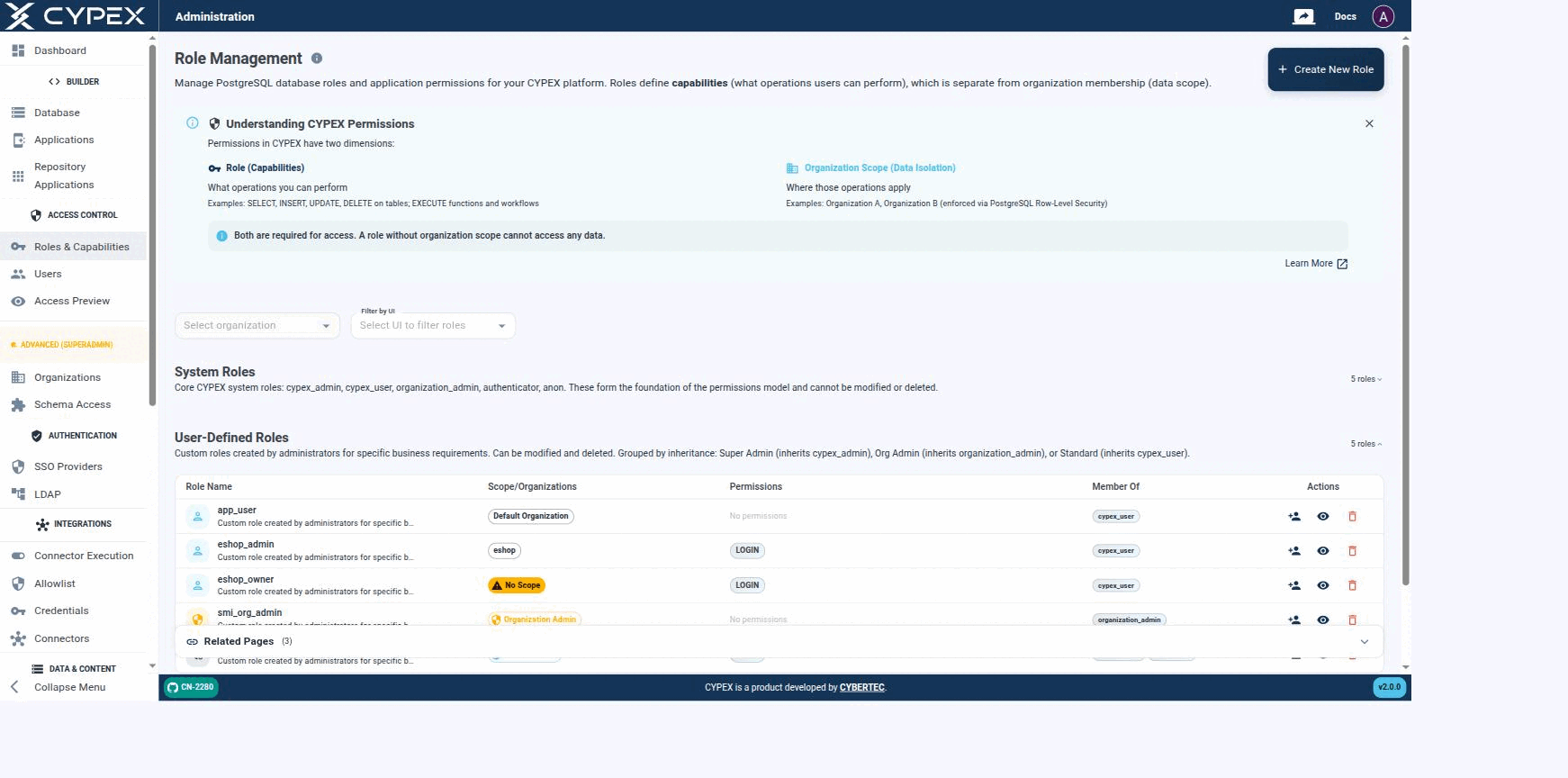
The next important step is to define roles. Remember, roles are connected to CYPEX users and represent real database-side users. Role Management lets you manage PostgreSQL database roles and application permissions for your CYPEX platform:
Role Management
Roles define capabilities — what operations a user can perform — which is a separate concern from organization membership, the data scope those operations apply to.
Roles vs Organizations
Permissions in CYPEX have two independent dimensions, both required for access:
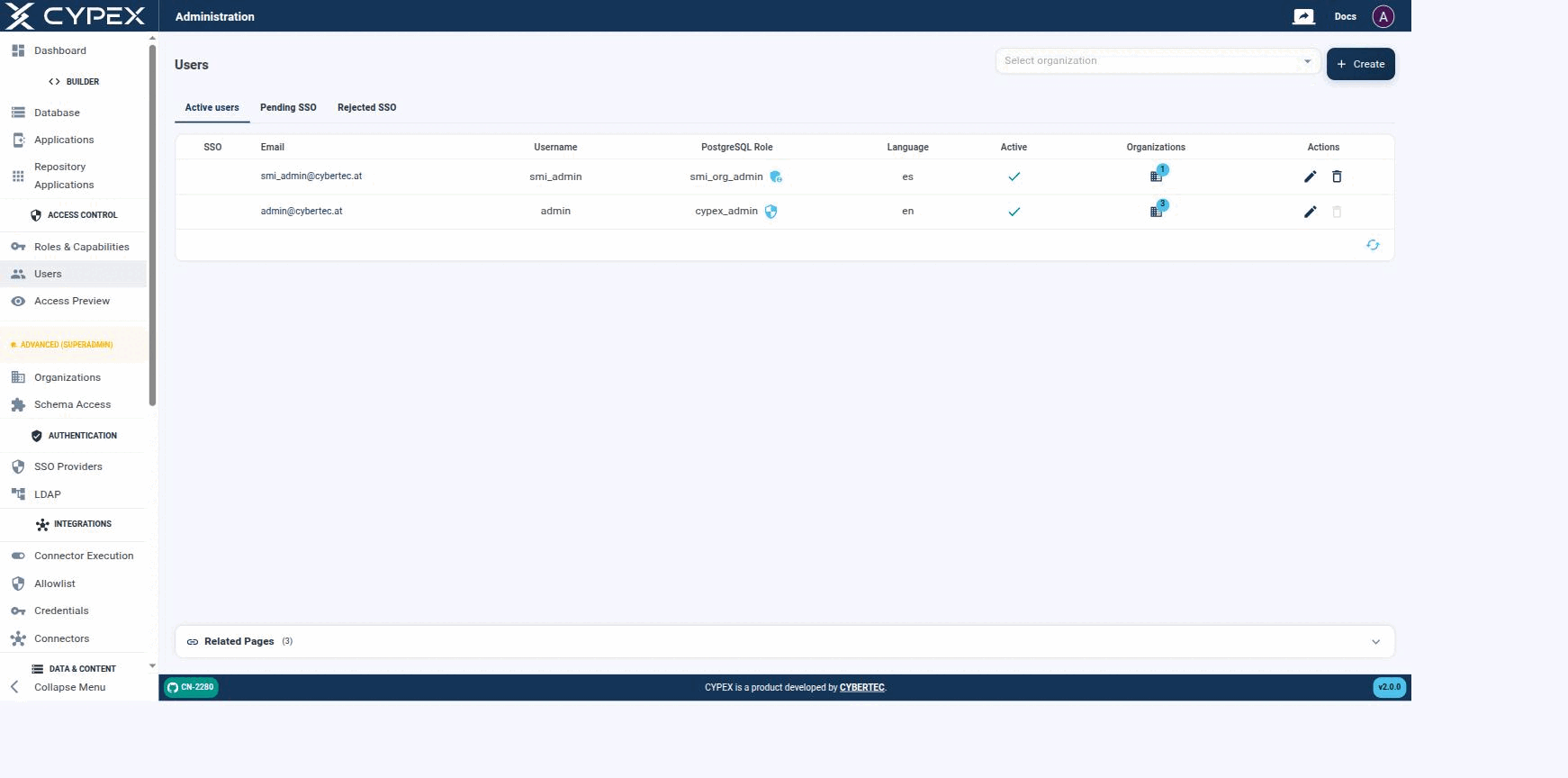
On the CYPEX side, users and roles are mapped to “login names”. This is done in the Users section of the admin panel:
Users
Active users, Pending SSO, and Rejected SSO tabs. Each row shows the PostgreSQL role, language, active state, and organization membership; use Select organization to filter by tenant.
Info
SSO-specific tabs (Pending SSO, Rejected SSO) and provider configuration are covered in their own section — see SSO Providers for provider setup, and Pending and rejected users for the full state diagram, admin approve/reject/un-reject actions, and audit trail behind these two tabs.
Also note that users are mapped to a database role. This is important, since the database role is what controls access to data — both what a user can do (capabilities) and, since v2.0.0, which organizations they can access. The login name (= email) is merely intended to handle CYPEX logins; permissions to data are managed on the lowest possible level (= PostgreSQL) to ensure consistency between the API, the app, and direct database access.
Access Preview answers one question: given this role, in this
organization, what can the user actually reach? It resolves capabilities and
data scope together and shows the result, so permission errors surface in the
admin panel rather than in a support ticket.
New in v2.0.0. Sidebar location: Access Control → Access Preview. The page
itself renders under the heading Effective Access Preview — same screen.
Why it matters
Authorization in CYPEX v2.0.0 is two-dimensional, and both dimensions must
agree before a row is returned:
This page is the admin-panel walkthrough: where each dimension lives in the GUI, and how they combine at query time. For the full conceptual write-up (JWT claims, RLS SQL, the roleType API contract), see Capabilities vs Data Scope under Organizations.
The v2.0.0 access model has two independent dimensions. A request only returns rows when both agree:
Dimension
Question answered
Where it’s configured
Capabilities
What is this user allowed to do?
PostgreSQL role grants (SELECT/INSERT/UPDATE/DELETE, EXECUTE)
Data Scope
Which rows is this user allowed to act on?
Organization assignment + Row-Level Security
A role with broad capabilities but no organization mapped sees no tenant rows. A role mapped to an organization but with read-only capabilities sees all of that organization’s rows but can’t change them. Neither dimension substitutes for the other.